What can I type into the search bar?
You can search across any field in a contact, case, or chat transcript by clicking the magnifying glass icon on the lefthand navigation bar.
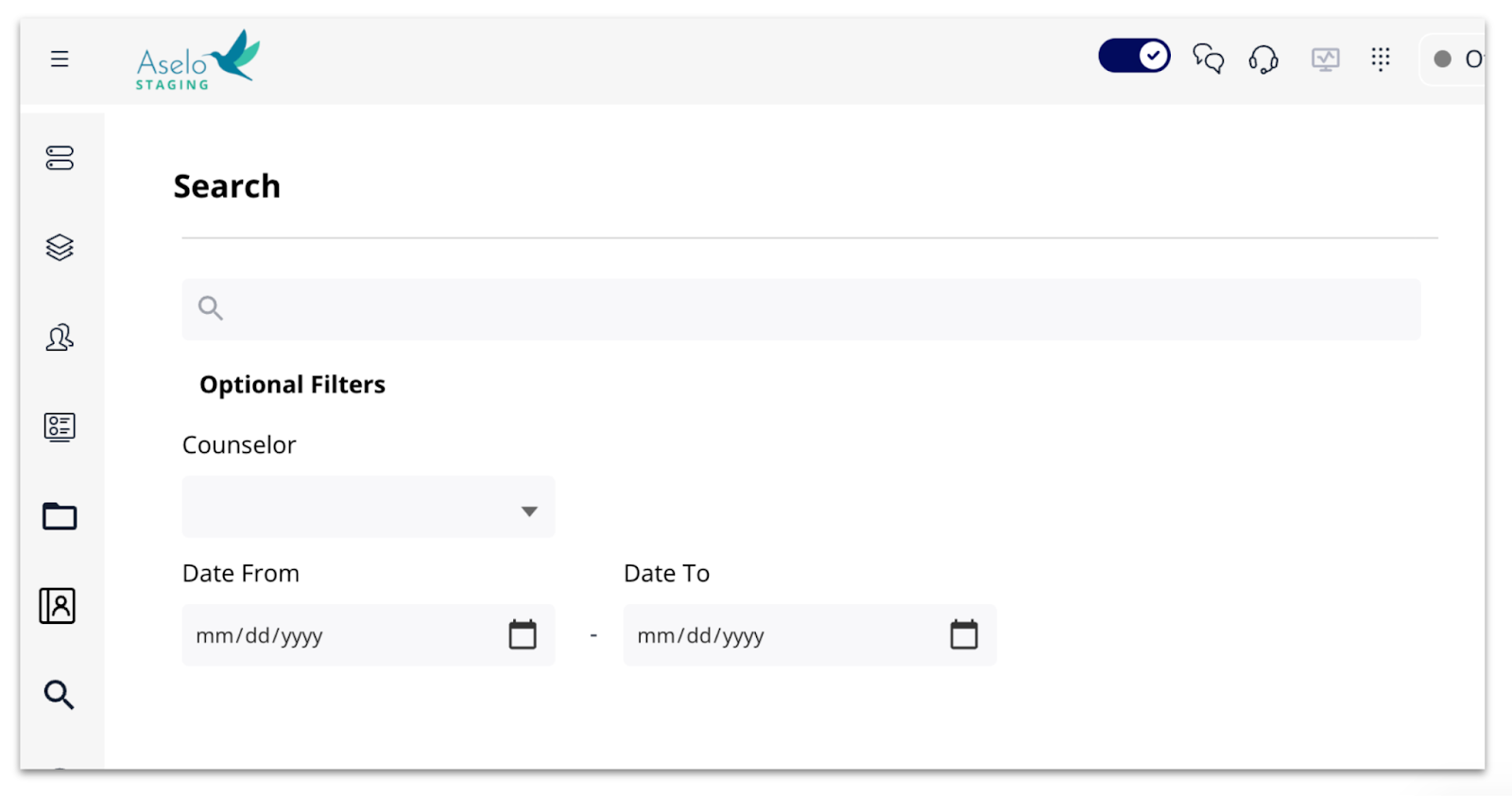
That means you can search for contacts and cases by typing any of the following into the search bar:
Names (ex: "Jane Smith")
Contact ID (ex: “12345”)
Case ID (ex: “678”)
Category (ex: “partner relationships”, “academic issues”)
Contact summary words or phrases (ex: “experiencing depressive thoughts”)
Chat transcript words or phrases, sent by counsellors or clients (ex: “Abbot Elementary”)
IP address
Any other field from a contact or case, such as ethnicity, gender, region, and more
Can I search using filters and keywords at the same time?
Yes, you can search AND filter at the same time. For example, you could type the category “emotional distress” into the search bar AND select “Date From: September 12, 2024” to see contacts and cases with the category “emotional distress” created on or after September 12, 2024.
Note that you can search using keywords but no filters. Or you can search using filters, but no keywords. As long as you include either a keyword or a filter, you'll be able to run a search.
Why am I not seeing older search results?
If you're not seeing older search results, it's possible that your search keywords or filters were too broad. Check if you have exactly 10,000 contact or case search results, which is the maximum amount that Aselo will return. If so, you can narrow your search using the date filters, counsellor name, or including more keywords. This should help to return fewer results, so you can find the specific contacts or cases you're looking for.
How can I narrow down my search results?
Tip 1: Use the optional filters like counsellor name, start date, or end date to narrow down your results. Hit your return/enter button or click “Search” to run a search.
Tip 2: Use quotation marks around a search term to bring back results that have an exact match with the phrase or word you are searching on. If you search for keywords without quotation marks, Aselo may show you contacts and cases with similar, but not exactly matching results.
- Example 1: If you search for apple without quotation marks, you might see results with misspellings like aple or similar words like apples.
- Example 2: If you search for "apple" using quotation marks, you will only see results with the exact word apple in at least 1 field. You will NOT see misspellings or similar words.
Was this article helpful?
That’s Great!
Thank you for your feedback
Sorry! We couldn't be helpful
Thank you for your feedback
Feedback sent
We appreciate your effort and will try to fix the article