How to Clear Stuck Tasks in Aselo
Intended for: Supervisors
You may encounter a scenario where one of your counselors has a contact assigned to them that has been completed, but the counselor has not submitted the contact record. This may be for a number of reasons - e.g. they forgot to submit the contact form before they logged off their shift, they experienced some sort of technical issue that prevented them from being able to submit their form, they lost internet connection, etc. Having a contact stuck may prevent that counsellor from being able to pick up new inbound calls.
Here are three steps we recommend you take to resolve this issue:
Have the Counsellor Try Closing the Task
If your counsellor is available, the best course of action is to have them close the task themselves. If a counsellor has an incomplete contact, they will see the contact in their “Active Tasks” list underneath the Contacts Waiting Window.
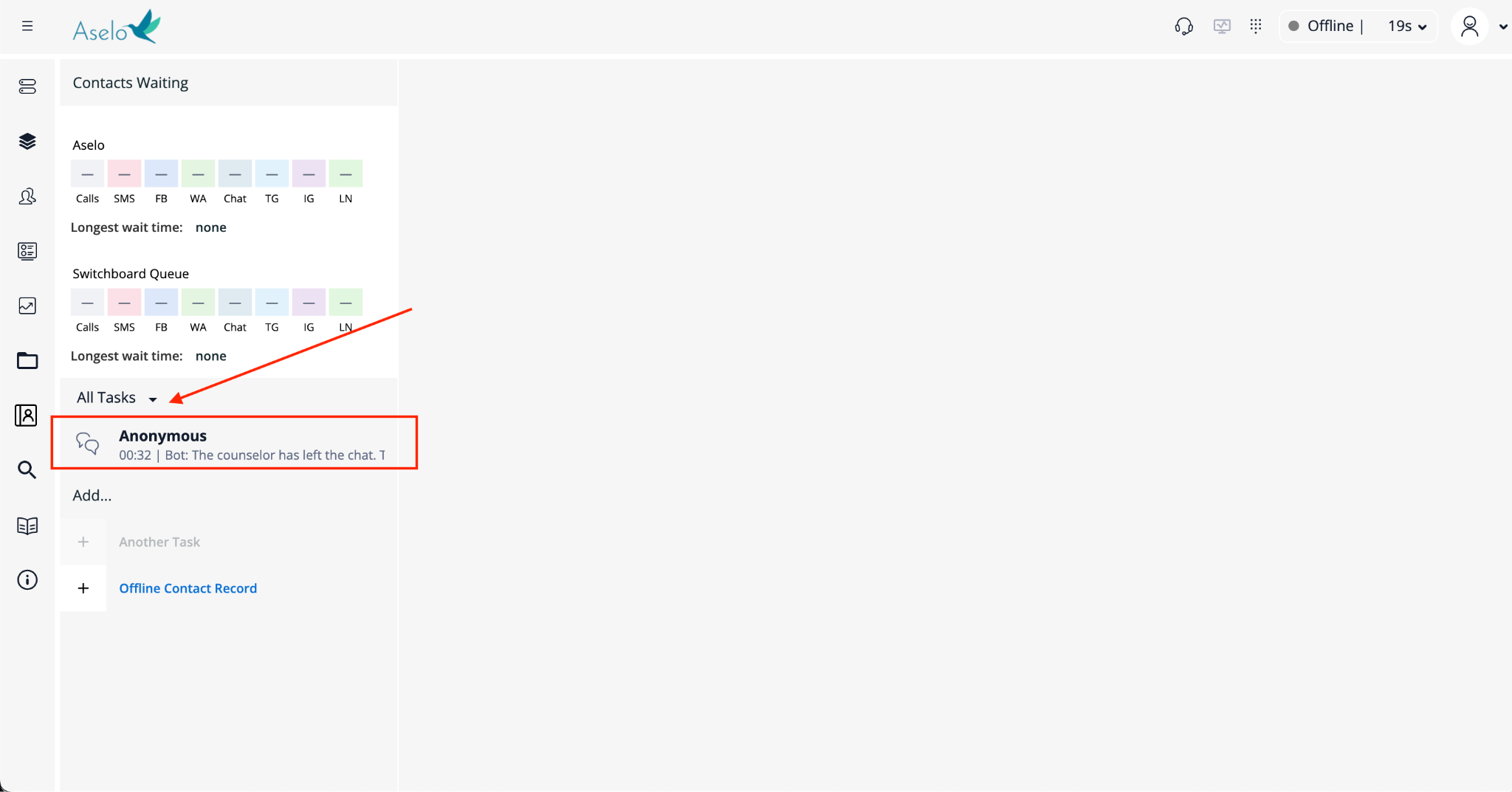
Clicking the open task in the All Tasks list should open up the contact form, where they can save and submit as they normally would.
Note that the counselor may have to scroll down to see the Active Tasks list.
Save and End the task from Search
If the counsellor is not available or if the counsellor runs into an issue completing any of the above steps, the supervisor can also attempt the close the task on behalf of the counsellor.
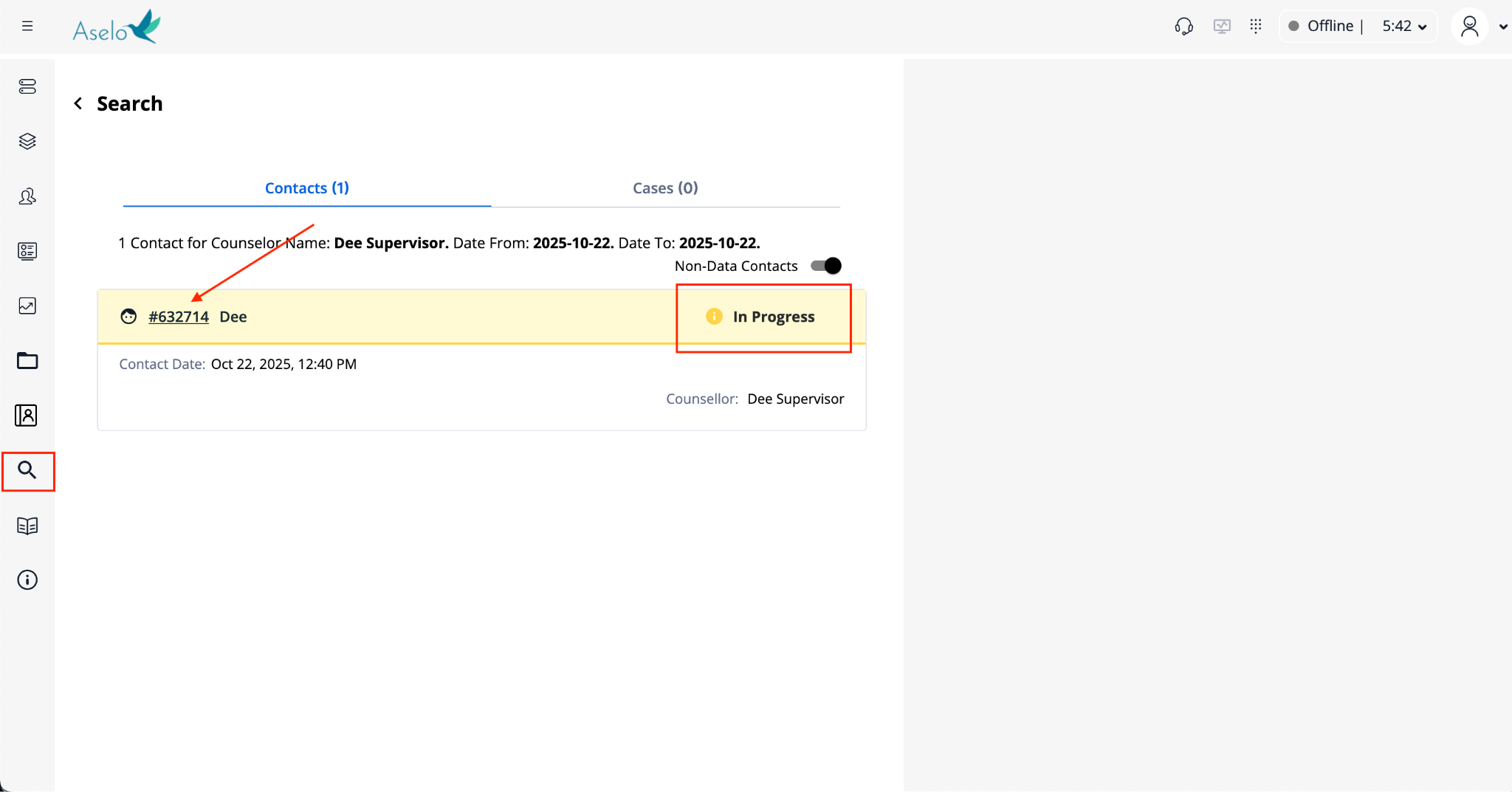
Supervisors can navigate to the Search page to find the appropriate contact they need to close. They can search based off of the counsellor, the date, or any contact details they might be aware of.
In the search results, supervisors will see the corresponding contact flagged with a yellow “In Progress” banner. Supervisors can click into contact by clicking on the ID number in the top left corner.
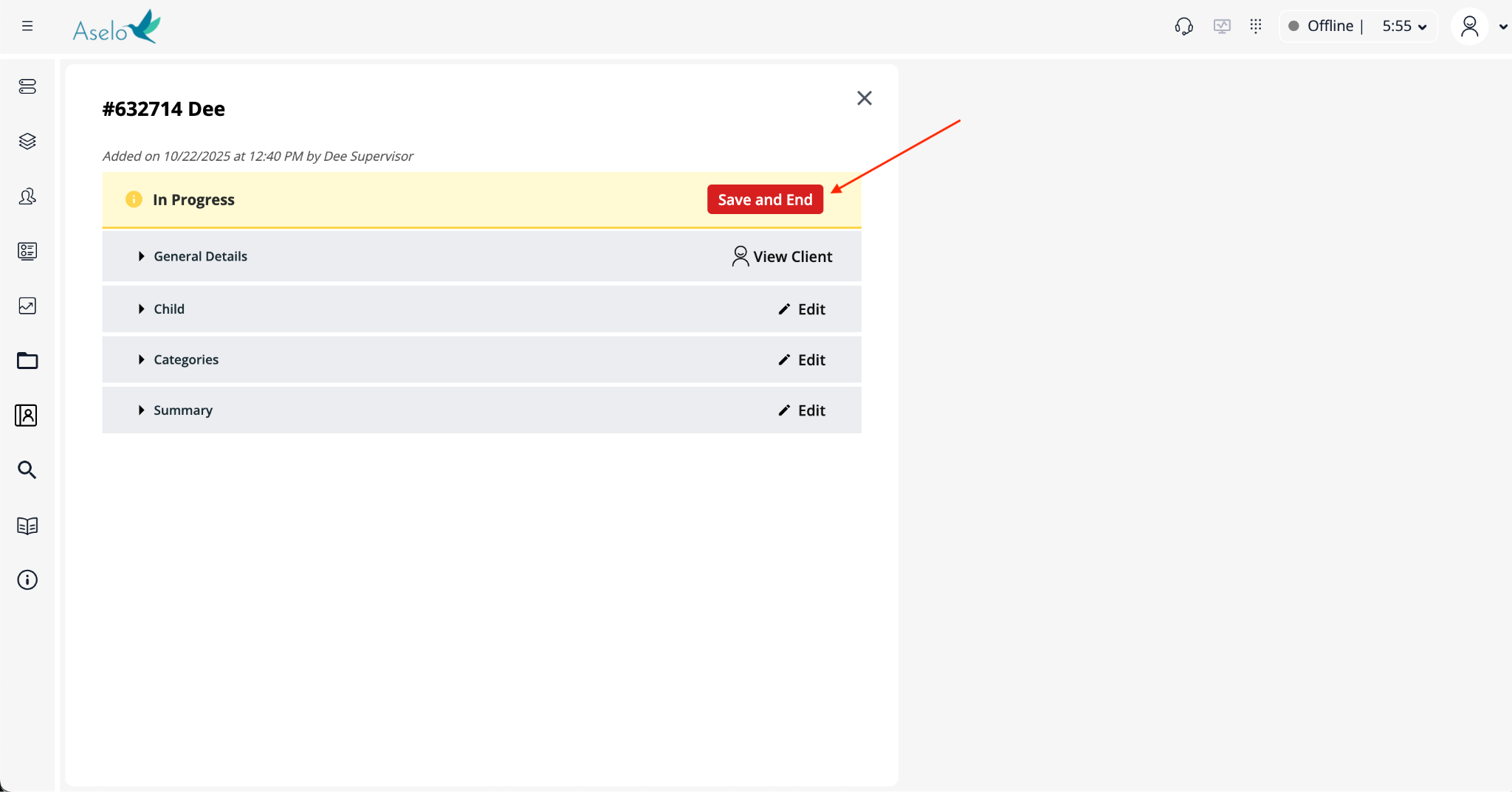
Supervisors should see the option to “Save and End” that contact, submitting the contact form on behalf of the counsellor. Note that when using this button, the data form will get submitted as is, regardless of if the counsellor has completed filling out the required fields necessary.
Clear the Task from the Twilio Console
If you have been given access to the Twilio Console and the above steps do not work, you also have the ability to clear the task from our backend system. Please only use this as a last resort - if you do need to complete these steps, please also take screenshots of errors from the two methods above and send them to support@aselo.org so our team can investigate.
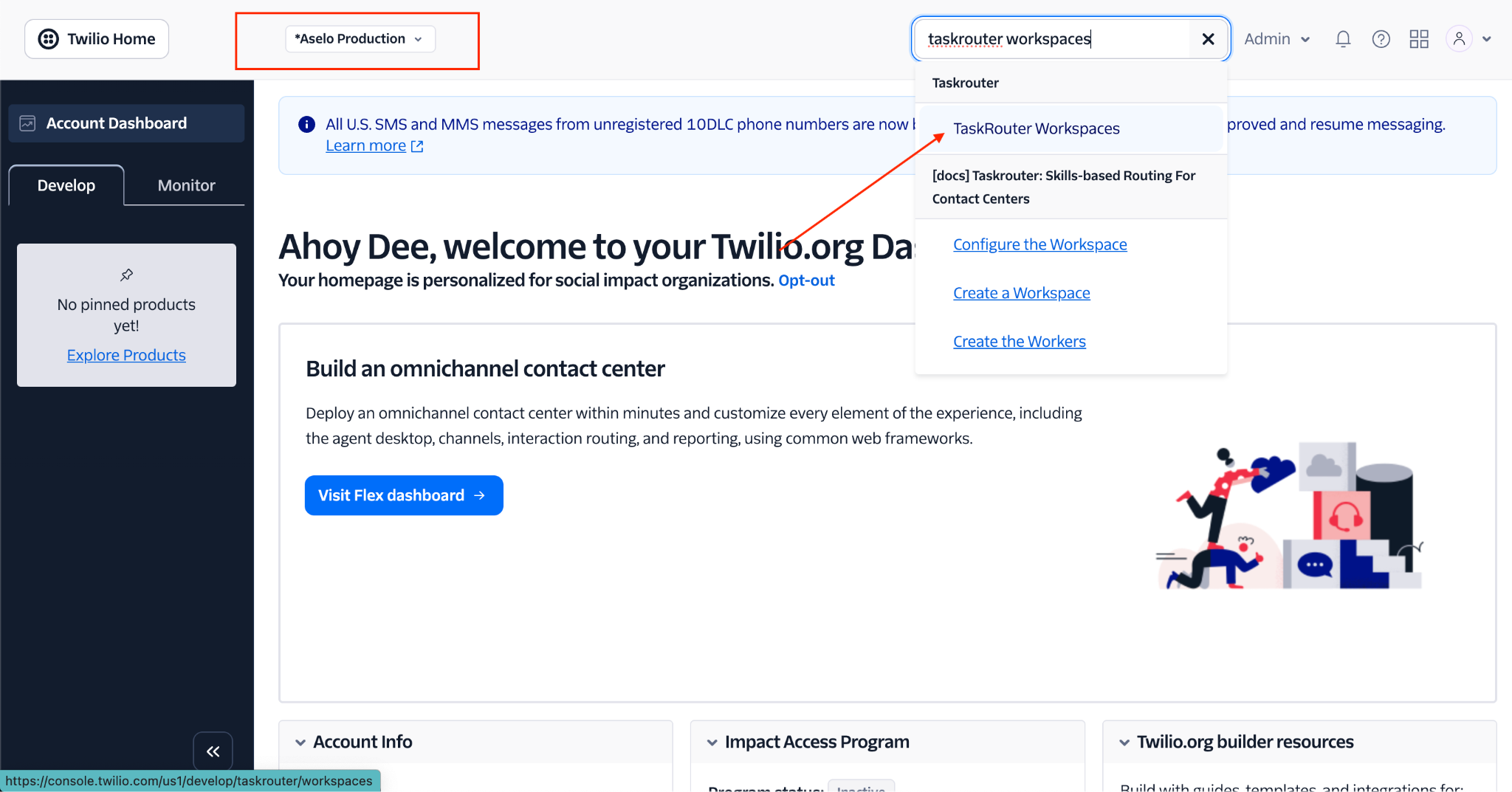
Navigate to https://console.twilio.com/ and login with your username/password (these are separate credentials from your Okta user login). Make sure that your helpline name is in the website header next to Twilio Home. If it’s not, click into the dropdown and select your helpline.
In the header search bar, type in “TaskRouter workspaces” and click the matching result.
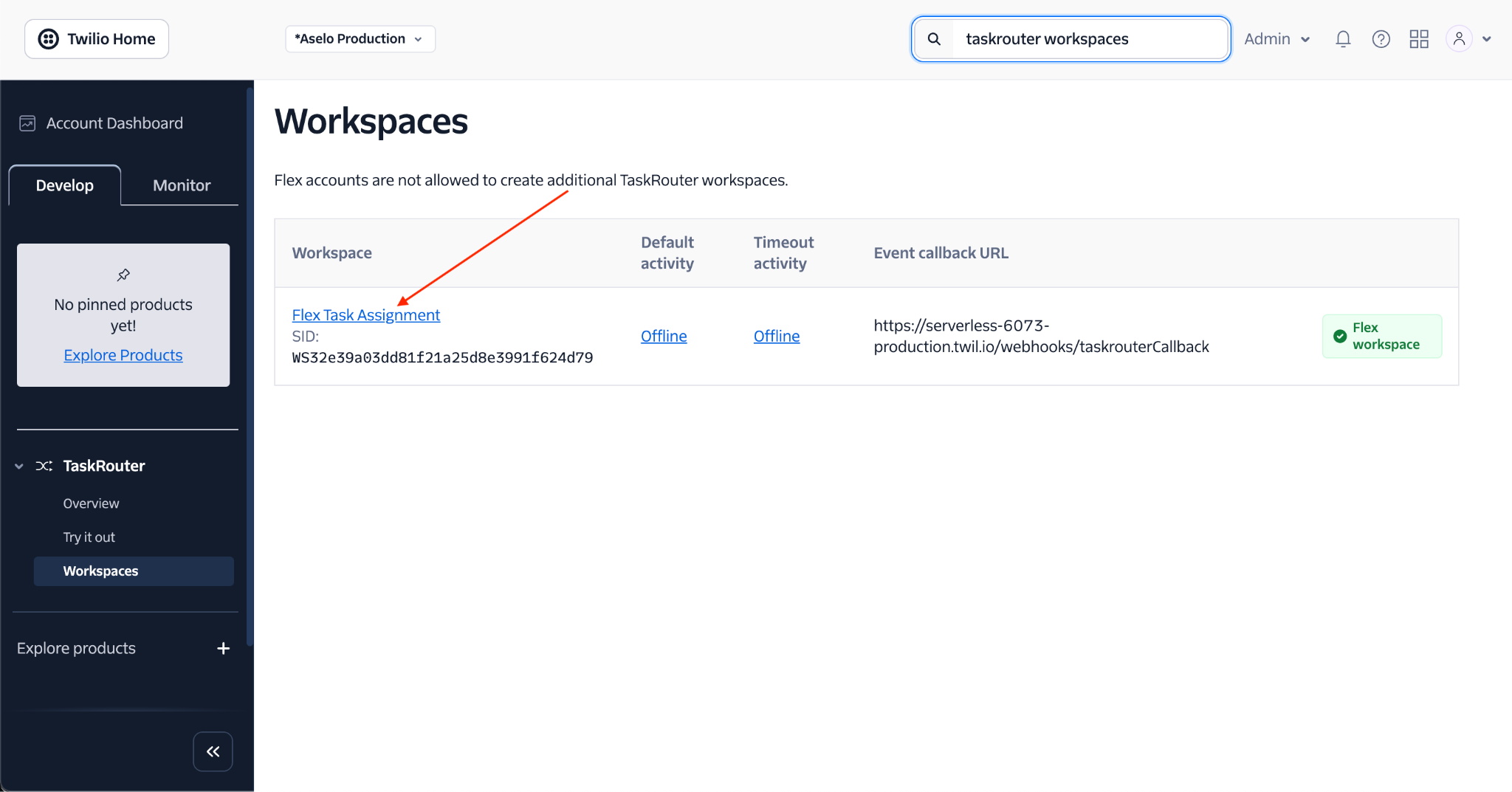
Under Workspaces, click on the Workspace named “Flex Task Assignment”.
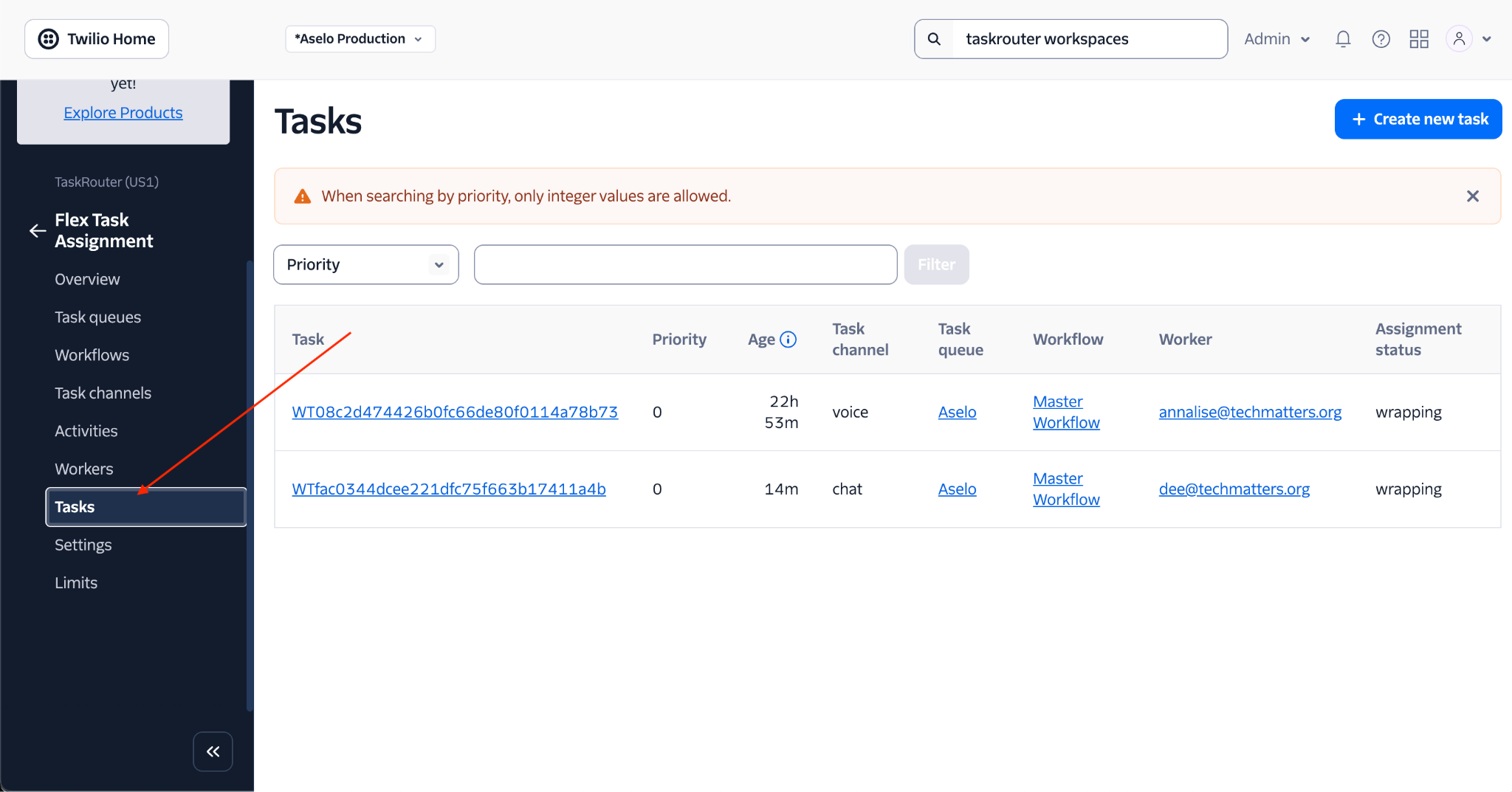
Click “Tasks” in the left-hand side navigation menu. Find the task associated with the corresponding counsellor and click on the long ID.
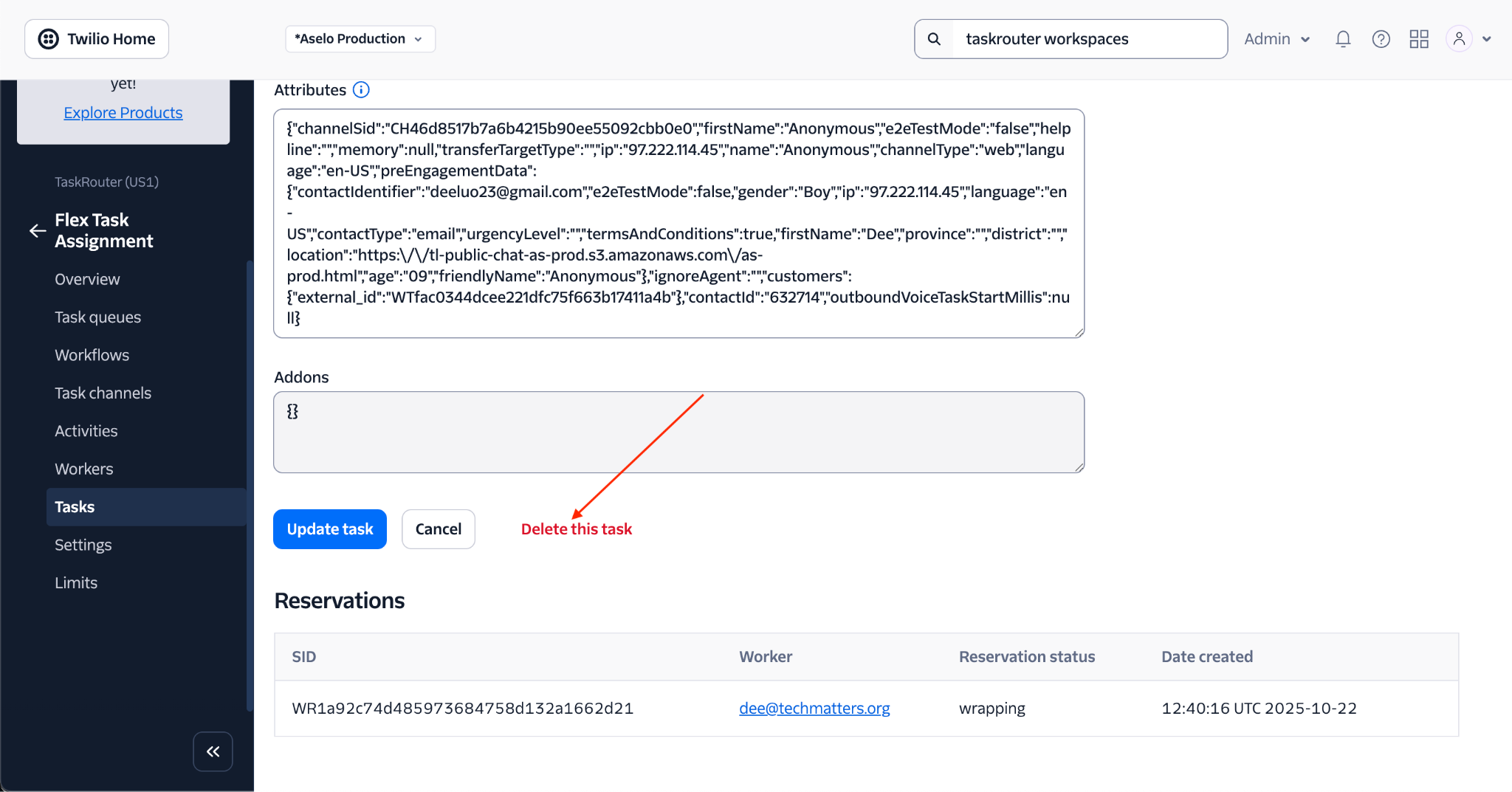
Scroll down to find and click the “Delete Task” button.
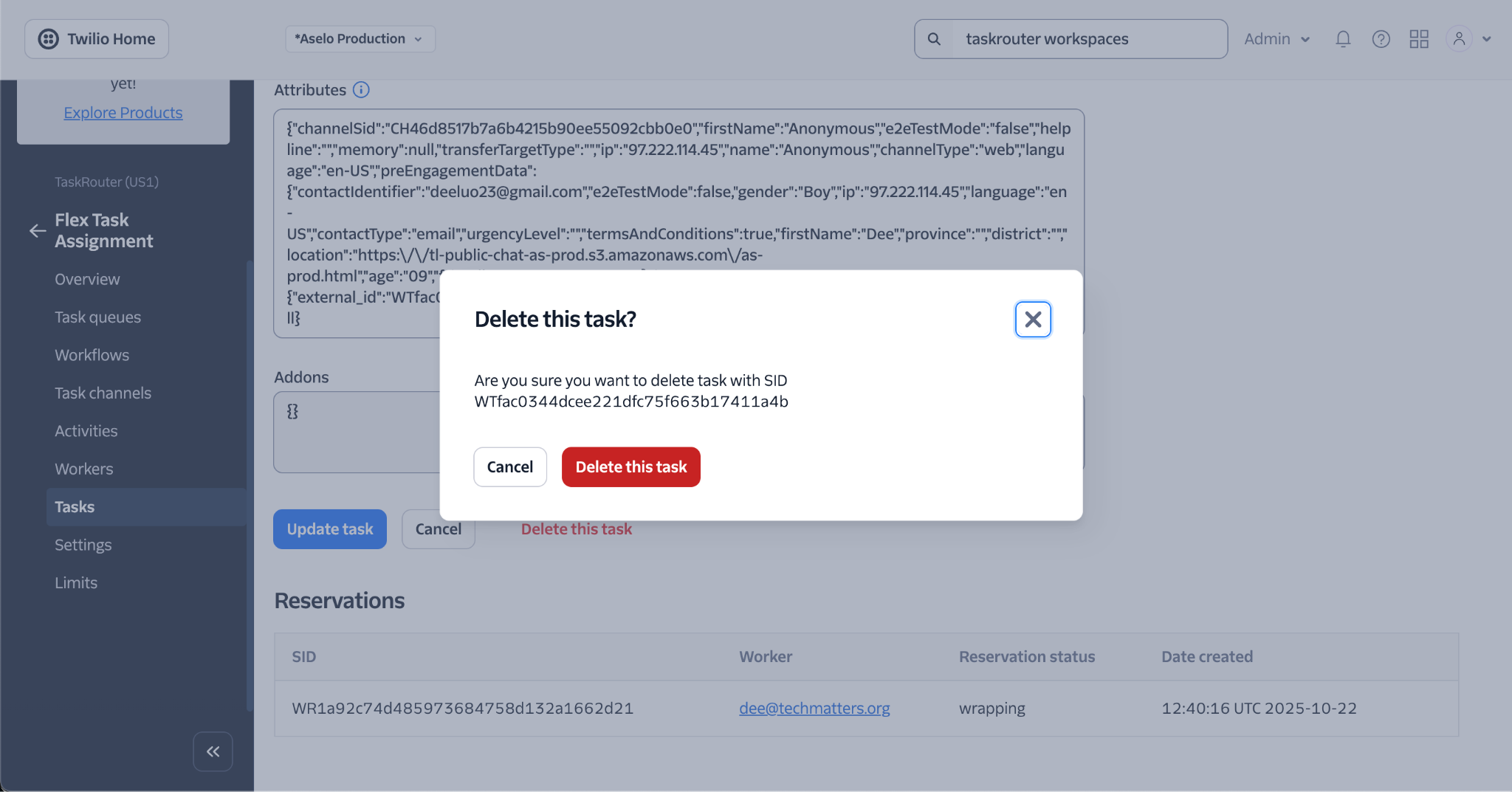
You will get a pop up message confirming that you want to delete the task. Click Delete this task.
This should clear the task from the counsellor’s view and unblock them from receiving new contacts.
Remember, you can always reach out to support@aselo.org for assistance.
Was this article helpful?
That’s Great!
Thank you for your feedback
Sorry! We couldn't be helpful
Thank you for your feedback
Feedback sent
We appreciate your effort and will try to fix the article